
IPTV Smarters Pro works well on many Samsung TVs. However, the method depends on your model, Tizen version, and regional app availability. Below you’ll find the easiest route first, then an advanced Tizen sideload option, plus a no-stress fallback that works on every Samsung TV. This guide also covers Xtream Codes and M3U setup, speed tips, and quick fixes—so you’ll be watching in minutes.
Try the PV Flix 24-hour trial (€2) to test your setup: Start Trial
Quick answer — how to use IPTV Smarters Pro on Samsung TV
You can use IPTV Smarters Pro on Samsung TV in three ways:
Smart Hub install (recommended): If “IPTV Smarters Pro” appears in Apps on your Samsung Smart Hub, install it directly.
Tizen sideload (advanced): If the app isn’t available, some older Tizen models support a userwidget USB method. Tizen is not Android; APKs won’t work.
External device (easiest fallback): Use a Fire TV Stick or Chromecast with Google TV, install IPTV Smarters from Google Play, and connect via HDMI.
What is IPTV Smarters Pro (and why Samsung Tizen matters)?
IPTV Smarters Pro is a popular IPTV player that lets you log in with Xtream Codes or an M3U playlist to stream live TV and VOD.
Most modern Samsung TVs run Tizen OS, which accepts Tizen apps from Smart Hub. Because Tizen ≠ Android, standard APK sideloading will fail. Therefore, your options are either Smart Hub, a Tizen widget (userwidget) install on compatible models, or a plug-in Android streaming device.
Install IPTV Smarters Pro from the Samsung Smart Hub (safest)
Check your model & OS: Settings → Support → About this TV. Confirm Tizen.
Open Smart Hub: Press Home → Apps.
Search & install: Type IPTV Smarters Pro, select Install, then Open.
Alt text (screenshot suggestion): “Search Smart Hub for IPTV Smarters Pro on Samsung TV.”
Choose login method: Xtream Codes (Server URL, Username, Password) or M3U URL.
Test playback: Load one live channel and one VOD title. If both play, continue to EPG and channel groups.
Tip: If the app doesn’t appear in your region, update TV firmware and try again. If still missing, use the external device method below.
Sideload on Tizen (userwidget / USB method) — advanced & at your own risk
Important: Tizen TVs do not accept Android APK files. Only Tizen widgets/packages can be deployed. Proceed only if you understand the risks.
Prepare the USB (FAT32) & userwidget:
Format a USB drive to FAT32.
Create a folder named userwidget in the USB root.
Place the Tizen widget files (from a trusted vendor/developer) inside /userwidget/.
Insert the USB into the TV → open Apps / My Apps and look for the new app.
Older Tizen models (e.g., J-series 2015–2018):
Some models require disabling App Auto Update to prevent removal after reboot. Behaviour varies—check your model’s manual.
Developer method (Tizen Studio) — brief warning:
Requires a developer account, certificates, and device pairing. It’s technical and may void support if misused. Avoid pirated packages.
Configure IPTV Smarters — Xtream Codes vs M3U (which to choose?)
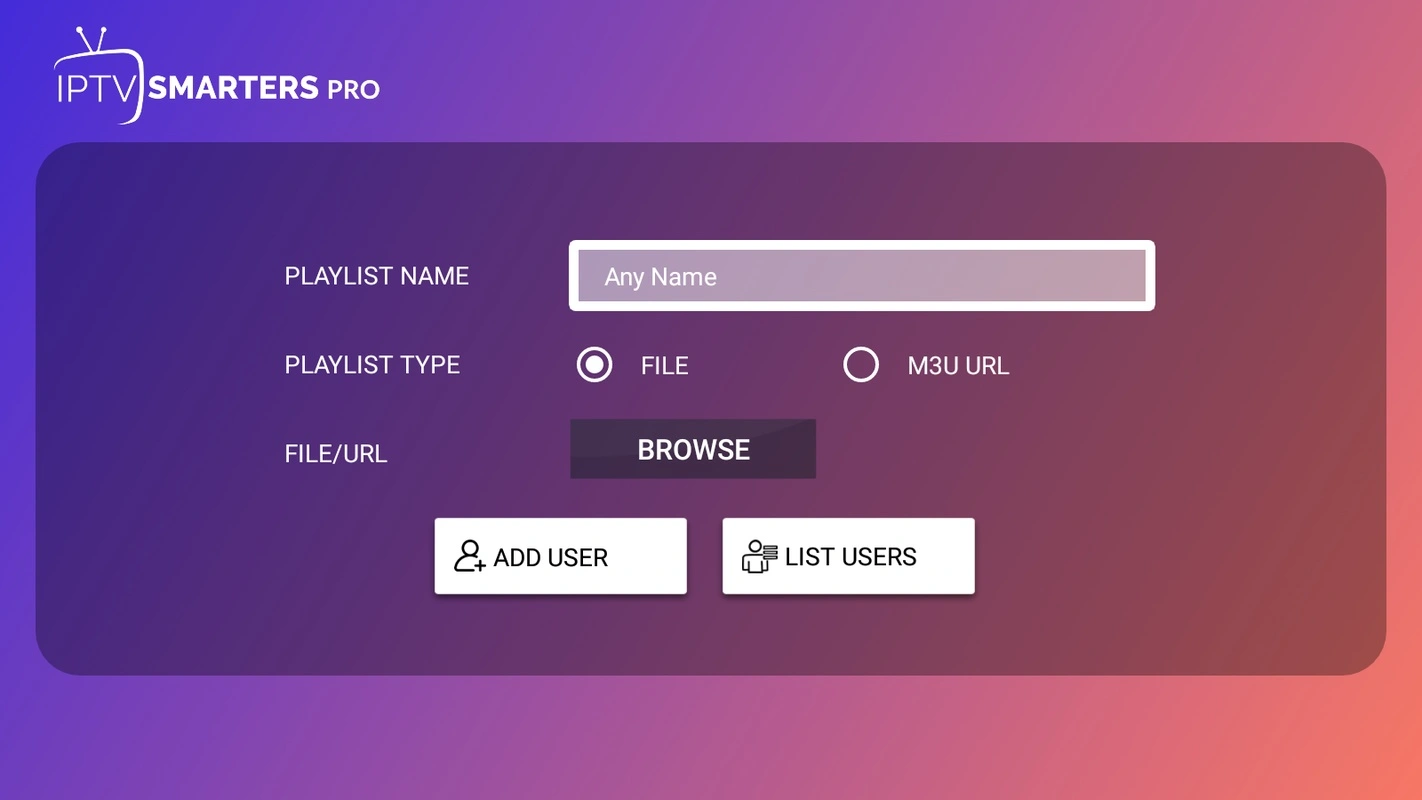
Add an M3U playlist
IPTV Smarters Pro → Add New User → Load Your Playlist (M3U).
Paste the M3U URL from your provider, name the profile, and save.
Load channels and test a few items.
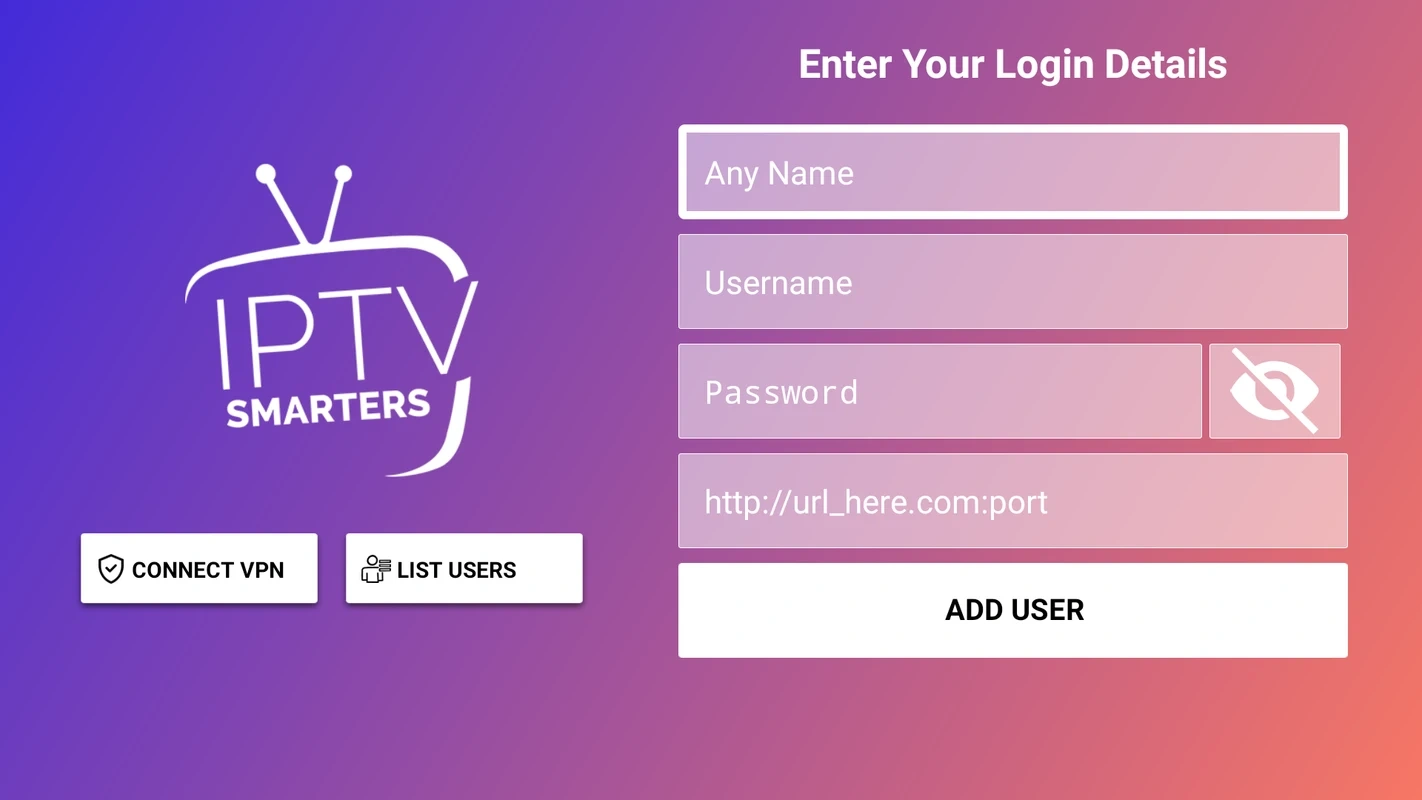
Enter Xtream Codes
Choose Xtream Codes API on the login screen.
Enter Server URL, Username, and Password (as provided).
Save and wait for channels and EPG to populate.
Why many prefer Xtream: often better EPG mapping and faster updates than raw M3U.
EPG & channel groups:
Use EPG settings to map guide IDs. Group channels into Sports, Movies, Kids, etc., for faster navigation. If EPG is missing, refresh, or switch to Xtream Codes for improved guide support.
Easiest fallback: use an external Android device (works on every Samsung TV)
If the Smart Hub app isn’t available—or you don’t want to attempt Tizen sideloading—use a plug-in device:
Connect a Fire TV Stick or Chromecast with Google TV to HDMI.
Install IPTV Smarters Pro from Google Play (or Downloader on Fire TV).
Log in with Xtream Codes or M3U and you’re done.
Why this rocks: It’s quick, fully supported, and avoids Tizen’s limitations. It’s also the best route if you want to try alternative players (e.g., TiviMate, OTT Navigator) later.
Method chooser — which route should I take?
| Your Samsung setup | Recommended method | Pros | Considerations |
|---|---|---|---|
| Recent Tizen, app available | Smart Hub install | Safe, simple, fastest | Regional availability varies |
| Older Tizen model | USB userwidget (advanced) | Can work where store fails | Risky; only use trusted widgets |
| Any Samsung TV | External device (Fire TV / Google TV) | Easiest, most compatible | One extra HDMI device |
Step-by-step: IPTV Smarters on Samsung (Smart Hub route)
Home → Apps (Smart Hub).
Search IPTV Smarters Pro → Install → Open.
Choose Xtream Codes or M3U.
Enter credentials carefully (case-sensitive).
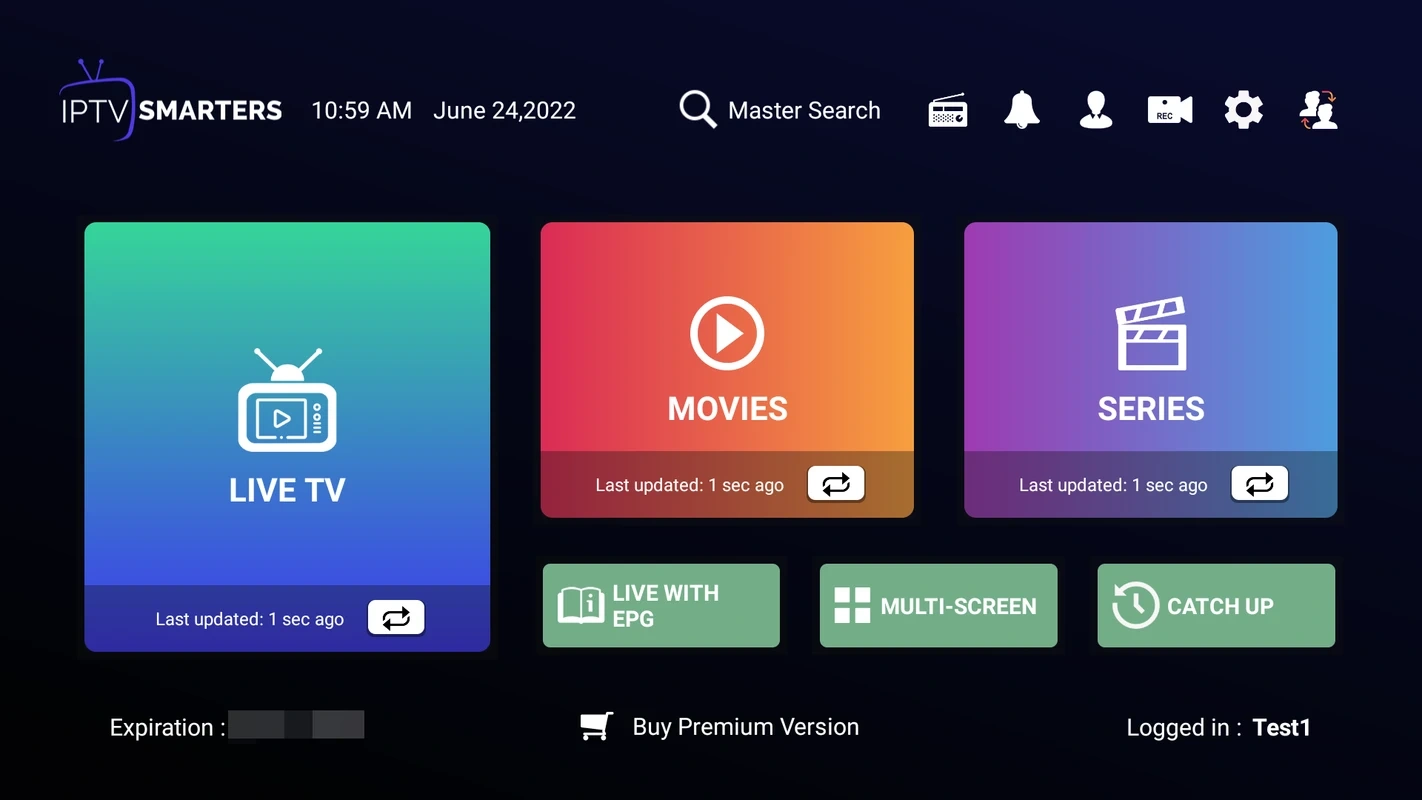
Wait for channels/EPG to load; test 2–3 items.
Group channels by category for faster browsing.
Optional: Enable catch-up if your provider supports it.
Done: Add the app to Home for quick access.
Mini troubleshooting: If login fails, test the same credentials on a phone app to rule out typos. If EPG is empty, refresh or try Xtream API.
Speed, picture quality & buffering fixes
Use Ethernet where possible → High impact
Check ISP speed: HD 15 Mbps • Full-HD 25 Mbps • 4K 40+ Mbps → High
Reduce Wi-Fi congestion (5 GHz band, move router) → Medium
Adjust in-app buffer size in Smarters → Low–Medium
Avoid peak-time downloads on the same network → Medium
Reboot router / power-cycle TV weekly → Low
Pv Flix streams are engineered to minimise buffering and deliver stable HD, Full-HD and 4K where supported across Apple TV, Android TV, Fire TV, Smart TVs and mobile.
Safety & good practice
Prefer official stores where possible (Smart Hub / Google Play).
For Tizen widgets, use trusted sources only.
Never use this guide to access copyrighted content unlawfully.
Review app permissions; keep firmware and apps up to date.
Why PV Flix is a strong choice for the UK & Europe
Instant activation with a step-by-step setup guide.
Stable delivery with infrastructure built to handle peak times.
Device coverage: Apple TV, Android TV, Fire TV, Smart TVs and mobile.
24/7 friendly support when you need help.
Start with a safe test: Try PV Flix for 24 hours for FREE

 English (UK)
  Deutsch (Schweiz)
  Français