
How to install IPTV on Android TV box — step-by-step guide
Want a straightforward android tv box iptv setup? This guide shows you how to install from Google Play, sideload apk android tv safely when needed, and add either an m3u playlist android tv box or xtream codes android tv login. You’ll also get speed tips, quick fixes, and a printable checklist. Prefer to test first? Try the Pv Flix 24H FREE Trial to verify your device and connection.
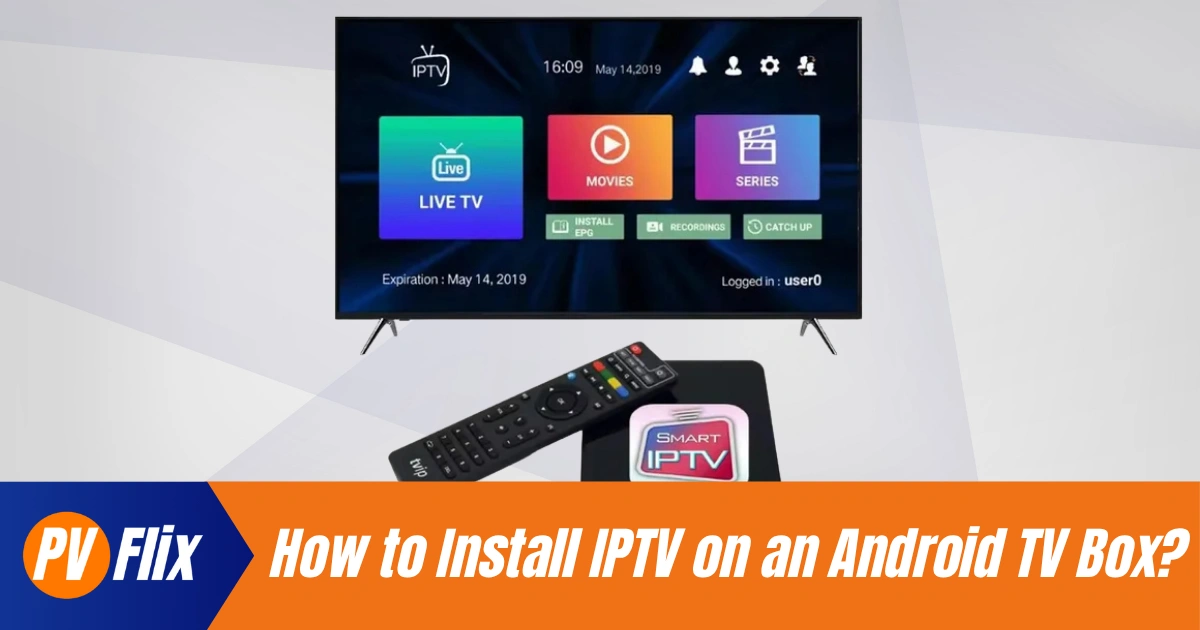
When comparing options like IPTV Smarters Pro Android TV box und install TiviMate on Android TV box, consider your technical comfort level and desired features.
Method A — Install from Google Play (recommended)
The safest route is the Play Store. It handles updates and reduces risk. In your first paragraph, confirm you’ll search, install and launch—this is the fastest google play install android tv path.
Steps (≤8):
Open Play Store on your Android TV box.
Search your chosen player (e.g., IBO Player, Perfect Player, TiviMate).
Check the developer and reviews → Install.
Open the app → choose Add playlist or Login with Xtream Codes.
Paste your M3U URL or enter Xtream server/username/password.
Let channels/EPG populate → test one live channel and one VOD title.
Pin the app to your Home row for quicker access.
(Optional) Turn on “launch last channel” in app settings.
Method B — Sideload APK on TV (Downloader method — safe)
Sometimes a TV-optimised build is only available as an APK. Follow these safety steps, and only enable android tv unknown sources temporarily for the downloader app.
4.1 Enable unknown sources (temporary):
Settings → Apps → Install unknown apps → enable for Downloader only.
4.2 Get the APK:
Install Downloader (AFTVnews) from Play Store → enter the official APK URL from the developer or your Pv Flix support email. (Alternatively, transfer via USB.)
4.3 Install & revoke:
Install → open the app → then disable “Install unknown apps” for Downloader. If available, verify the SHA256 checksum before installing.

M3U playlist Android TV box or Xtream Codes — add your service
Both methods work well; many users prefer Xtream for faster guide updates. In this first paragraph, note that xtream codes android tv tends to handle EPG and categories neatly.
Add M3U (step-by-step):
App → Add playlist / Add profile → paste M3U URL → name it → Save
Refresh channels → test a few items

Add Xtream Codes:
App → Login with Xtream Codes API
Enter Server URL / Username / Password → Save
Wait for EPG/channel categories to populate
Tip: If EPG times look off, set an EPG time-shift in the app.
Android TV IPTV EPG & best settings — buffer and decoding
Small tweaks often fix stutters and improve zapping times. If streams occasionally stall, try an iptv buffering fix by raising buffer size slightly and preferring hardware decoding.
EPG time-shift: align to your time-zone
Buffer/cache: try 2000–5000 ms (don’t set too high)
Decoder: hardware first; fall back to software if audio drifts
Channel groups/favourites: faster browsing on TV
Auto-start/last channel: handy for set-top behaviour
Internet speed for IPTV — picture quality & network tips
Performance depends on bitrate, device and connection quality. To reduce buffering iptv, go wired where you can and keep your Wi-Fi uncongested.
Suggested speeds per stream:
SD: 3–5 Mbps
HD (720p–1080p): 6–15 Mbps
4K (UHD): 25 Mbps+
Network tips:
Ethernet > Wi-Fi; if Wi-Fi, use 5 GHz
Close background downloads and updates
Keep firmware and apps updated for codec support
Ensure your box handles HEVC for 4K where supported
Android TV box IPTV troubleshooting — quick fixes
Start with the basics: power-cycle your box and router, then test another app. If you see missing channels iptv after a refresh, validate your playlist in VLC on a PC.
Buffering/stutter: test speed, switch to Ethernet, lower quality, increase buffer
App crashes: clear cache/data, update or reinstall; check APK architecture
No EPG/offset times: refresh EPG, set time-shift, confirm time-zone
App not installed (APK): uninstall conflict, check arm vs arm64, free storage
Login errors: re-enter credentials carefully; confirm device/IP limits with support
Is IPTV legal? Safety, APK risks & good practice
IPTV is a delivery method; legality depends on rights and regional law. When you install unknown apps android tv, use official sources and review permissions.
Prefer Play Store where possible; otherwise, verified developer URLs
Enable unknown sources only for the installer and disable afterwards
Avoid apps requesting contacts/SMS; review permissions
VPNs can add privacy; don’t use them to infringe copyrights (not legal advice)
Quick setup checklist — get streaming in minutes
For a painless android tv box iptv setup, follow this short path:
Choose a player (Play Store preferred)
Get your M3U/Xtream credentials from Pv Flix
Install or sideload safely with Downloader
Add playlist/profile → refresh EPG → test 2–3 items
Tweak buffer/decoder; pin the app to your Home row
Why Pv Flix is a strong choice for Europe
Pv Flix focuses on stable delivery, clear setup, and friendly support. If you plan to buy iptv subscription, test device compatibility first with our risk-free trial.
Instant activation with a step-by-step guide
25,000+ channels and a curated VOD library
HD, Full-HD and 4K where supported
Infrastructure engineered to minimise buffering at peak times
Works on Apple TV, Android TV, Fire TV, Smart TVs and mobile
Helpful 24/7 support

 English (UK)
  Deutsch (Schweiz)
  Français